A step by step guide to install 3rd party Android apps/apk on the following models:
MBR-1100, XMP-6200, XMP-1078, XMP-6250, XMP-6400, XMP-7300 player
XMP-2200/2300/2400 player
XDS-1060/1062/1068/1078/1088/1588/2288/2285 signboard
WRP-1000
XMP-85XX
If installation is complete and the APK is desired to be the main App upon boot up, please use the AppStart feature.
AppStart is a reliable way to assign an Android app to run at boot time.
To configure your AppStart settings:
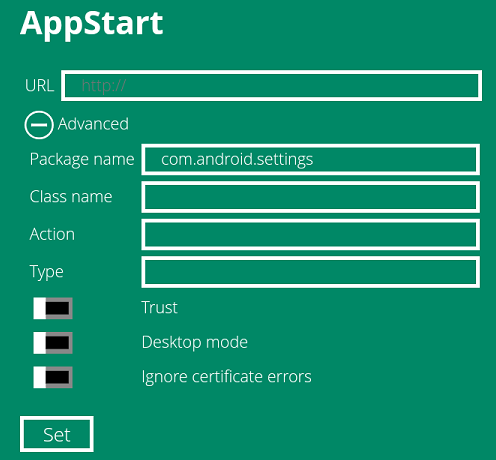
Go from Basic Settings > Advanced > Content > AppStart.
[On Android 4.4]
The following configuration options are available to you:
- URL: the default URL to load when player starts up. If you are using the built-in IAdea player, this is the only configuration option you need to set to start running SMIL or HTML5 content.
-
Advanced: click on the "+" (plus sign) to open this section for assigning your custom apps
- Package name: your Android app package name. Default value is com.iadea.player
- Class name: your Android app class name. Default is com.iadea.player.SmilActivity
- Action: the Android action name to launch your app. Default is android.intent.action.VIEW
- Type: additional intent parameter for your app.
To launch your app by AppStart, please at least fill Package name, Class name and Action of your app.
[On Android 7.1 and newer]
In newer firmware you may enter only the package name to AppStart and the first launchable activity in this app will be chosen.
If you would like to check out all installed packages, please use adb tool to run command “adb shell pm list packages”.
Best practice for Android developers to exit the App
- App should override Activity.onBackPressed() if APP doesn’t want exit activity on back pressed.
- App should call Activity.setResult(RESULT_OK) if APP wants to exit activity to the unlock screen without auto-recovery.